Guide
Doing Dumb Dubs is a collaborative dubbing studio: you import a video, the platform prepares the script (transcription, translation, rhythmo band), then your team casts the roles, records the voices, reviews, exports and shares the dubbed version. It is also a karaoke for your own videos, with lyrics synced word by word and a playlist for the party. This guide follows the seven stations of dubbing, with screenshots of the app.
The screenshots show the French interface.
Before you start: an account
Create an account with a username and an email address (the email is used for verification and important notifications), then log in with the username or the email. A “forgotten password” link lets you reset it by email at any time. Workshop students do not need an account: a session code from the teacher is enough.
Karaoke in one minute
- Import. “Import a song”, from My songs: a file or a link you hold the rights to.
- Preparation. A few minutes: the voice is separated from the music and the lyrics arrive synced. You can close the page; My songs lights up when it is ready.
- Sing. “Sing” opens the stage and starts playback.
Space pauses,↑ restarts the line; on a touch screen, tap the picture. - Fix. A mistake in a line? “Fix the lyrics” repairs it without leaving the song (
C ).M flags the line you just heard, for later. - Settings. Text size, script and guide vocal (
A ). At the very bottom, “Show the help again” replays the bubbles from your first song.
On a song's stage,
A party with friends
On a song's stage, Open a party gives a six-character code and a QR code. Your guests open them on their phones, pick a nickname, without an account, and suggest songs from your song list; your playlist becomes the party queue. The Pricing page shows which plans include parties.
The party drawer receives their suggestions: accept, decline, reorder the queue, remove a guest. With Accept without reviewing, they go straight into the queue; each guest has at most three songs waiting or coming up.
For the stage on the TV, open the site's address followed by /ecran in the TV's browser, or on a computer plugged into it: a screen code appears. Type it in Link a screen, then confirm “Tap to start” on the TV. On a computer, Open the screen here opens a window to place on the plugged-in screen. Once a screen plays, your device is the remote. If the TV won't play the video, plug in a computer.
Guests see titles and nicknames, never the lyrics. A removed guest can come back under another nickname, since nothing identifies them: remove them again. The party closes with “Close the party”, after 12 hours without activity or after 24 hours; what it held is erased 24 hours after it ends (Privacy policy).
Import
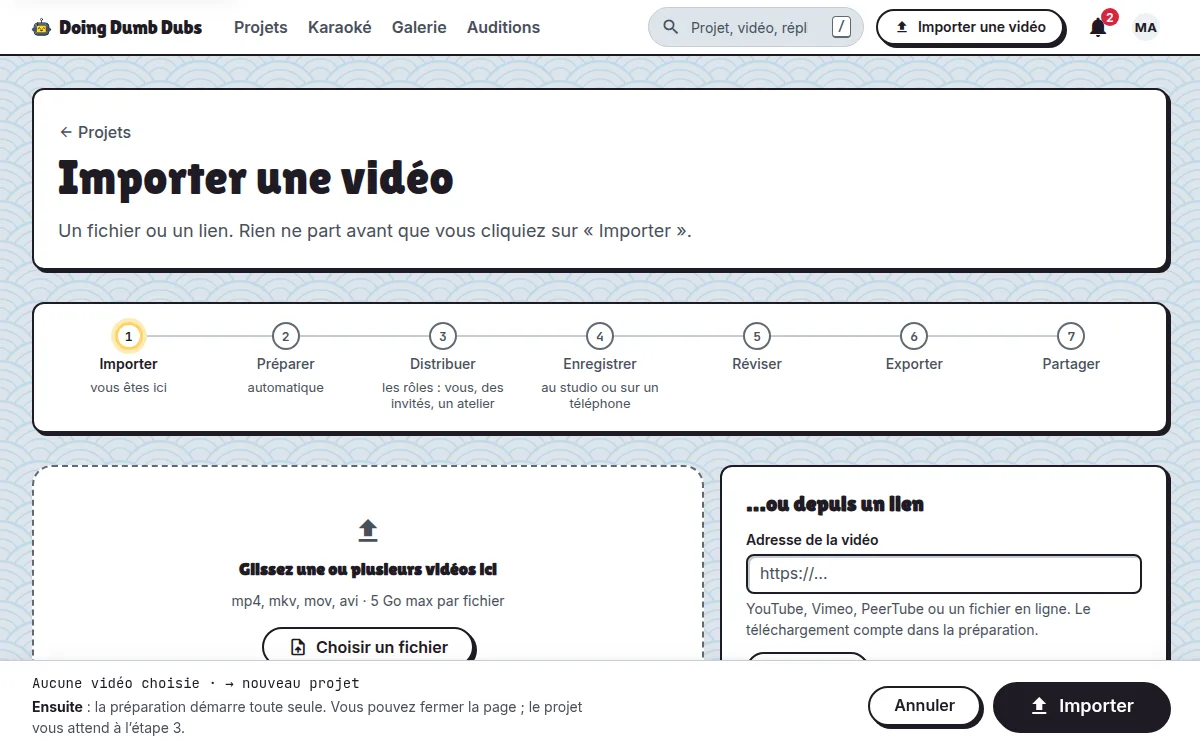
“Import a video”, in the bar, opens the import: drop a video file (or paste a link you hold the rights to), choose the original language and the dubbing language, the style (faithful or parody), and click “Import”. Nothing is sent before that click.
Prepare
Preparation starts on its own and runs in the background: audio extraction, voice / background separation, transcription, translation, splitting into timed lines, rhythmo band. You can close the page: Projects tracks the progress, and a notification tells you when the video is ready. As soon as the text exists, the script editor lets you adapt it in bulk.
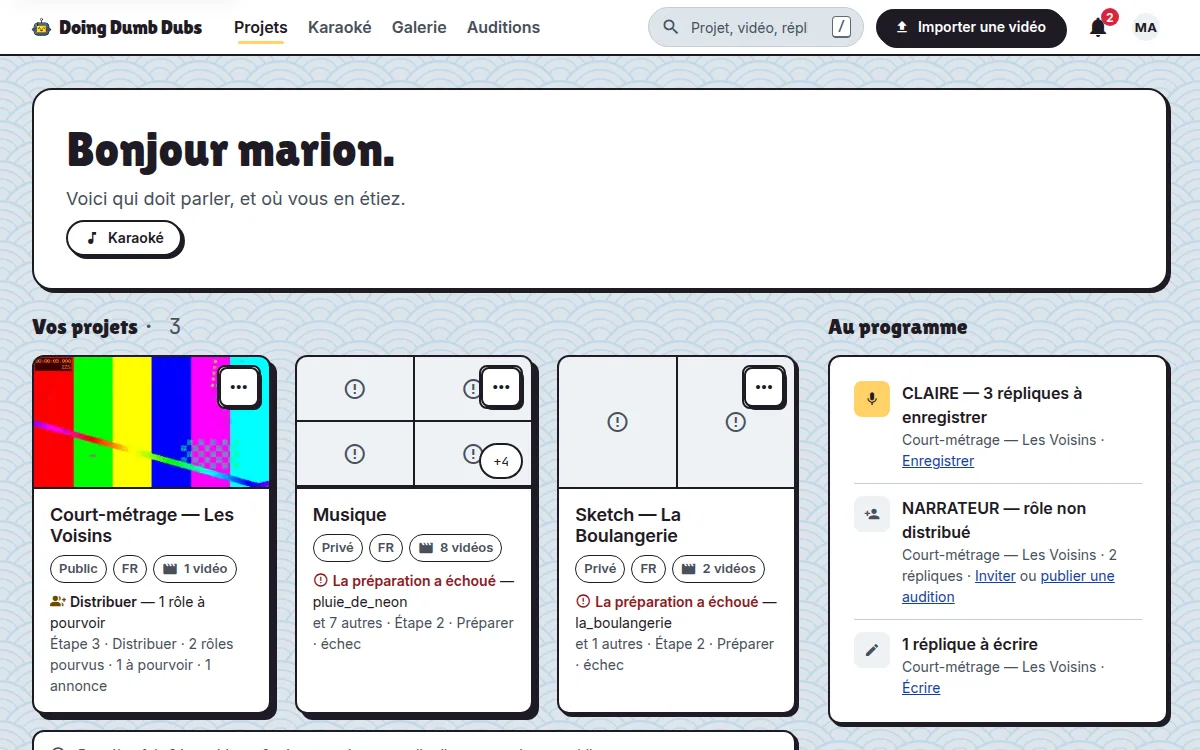
Projects shows one tile per project: its videos as thumbnails, what it is waiting for, and a way to pick it up again. Clicking a thumbnail opens that video; clicking elsewhere opens the project, where each video has its card with its thread from import to sharing and its next step.
Cast
A project's call sheet says who speaks: each character, the person who lends it their voice, and what is left to record. Invite members by link, open a workshop for a class (students enter a code, no account needed), or post a casting call on the Auditions page: actors submit an audition there, and you choose.
Record
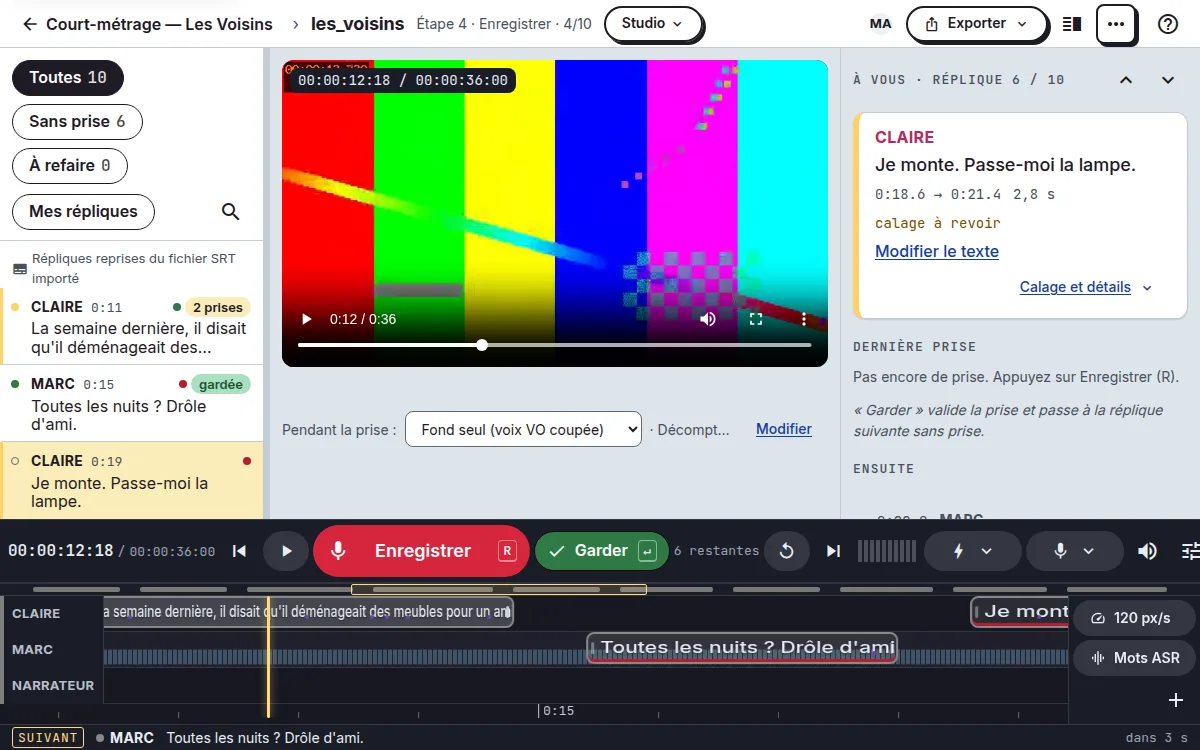
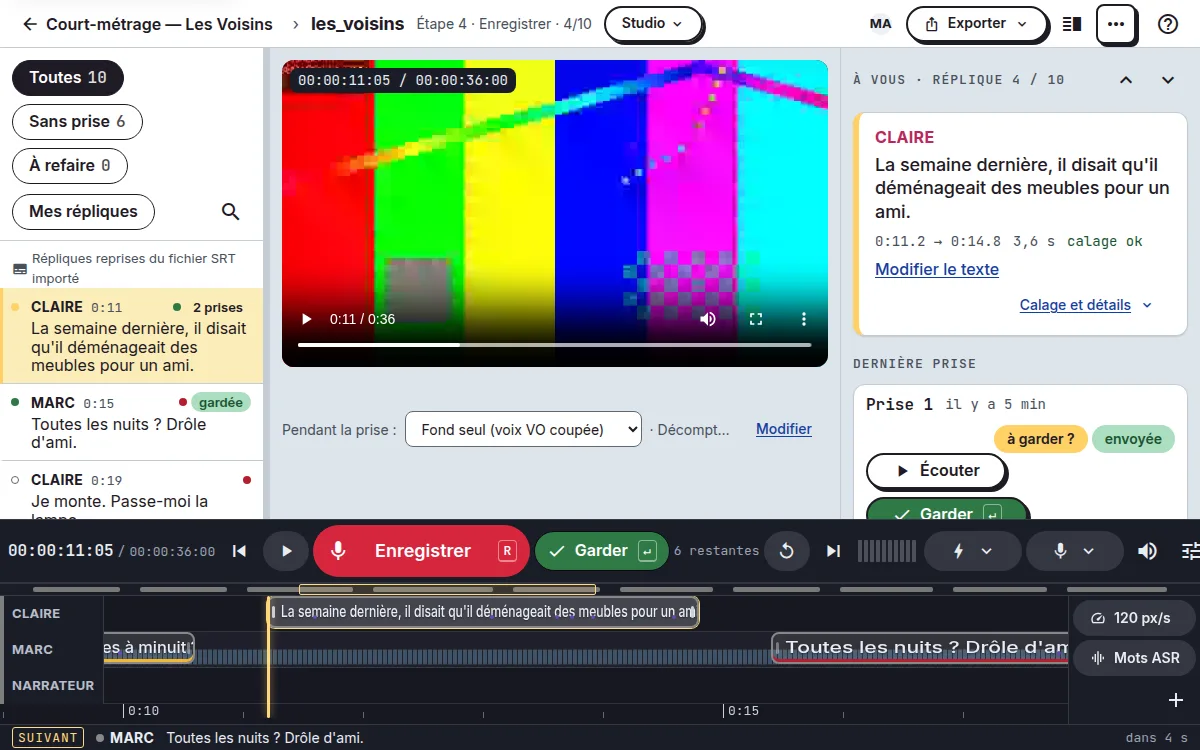
The studio is the workbench. On the left, the script: each line with its character, its colour and its recording status. On the right, the player and the station: the current line in large type, with its latest take. At the bottom, the transport and the rhythmo band: the lines scroll past the cursor, as in a professional studio — you read the text at the exact moment it must be spoken.
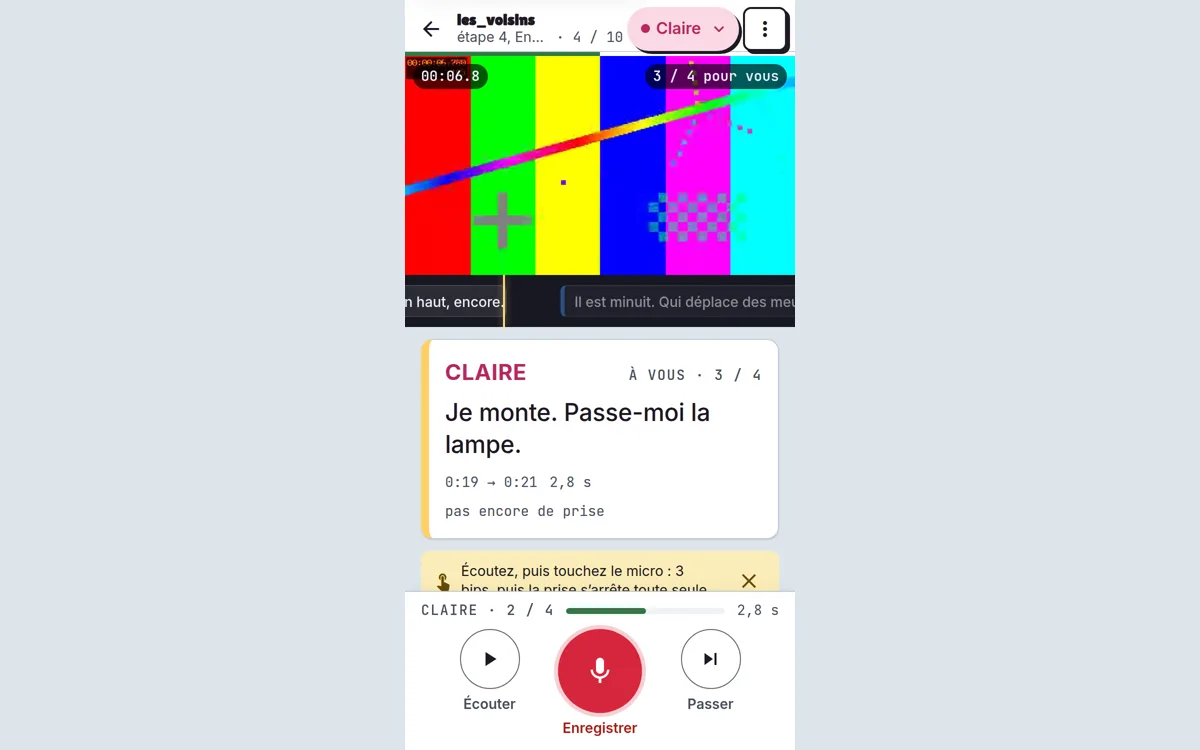
On a phone, actor mode shows each actor their lines: the first one without a take is already selected, the mic is ready. Listen, perform, play the take back in the scene, then “Keep and go to the next one”. Lines marked “to redo” by the director come back to the top; a take whose upload fails is kept offline and sent again once the network is back — nothing is lost.
Review
Click a line in the script: the editor shows the original text, the adapted text, the timecodes and the takes already recorded. Selecting it locks the line for your colleagues — working together never overwrites anyone's work. Comments anchored to a line and takes marked “to redo” show up in the script and in the Review drawer.
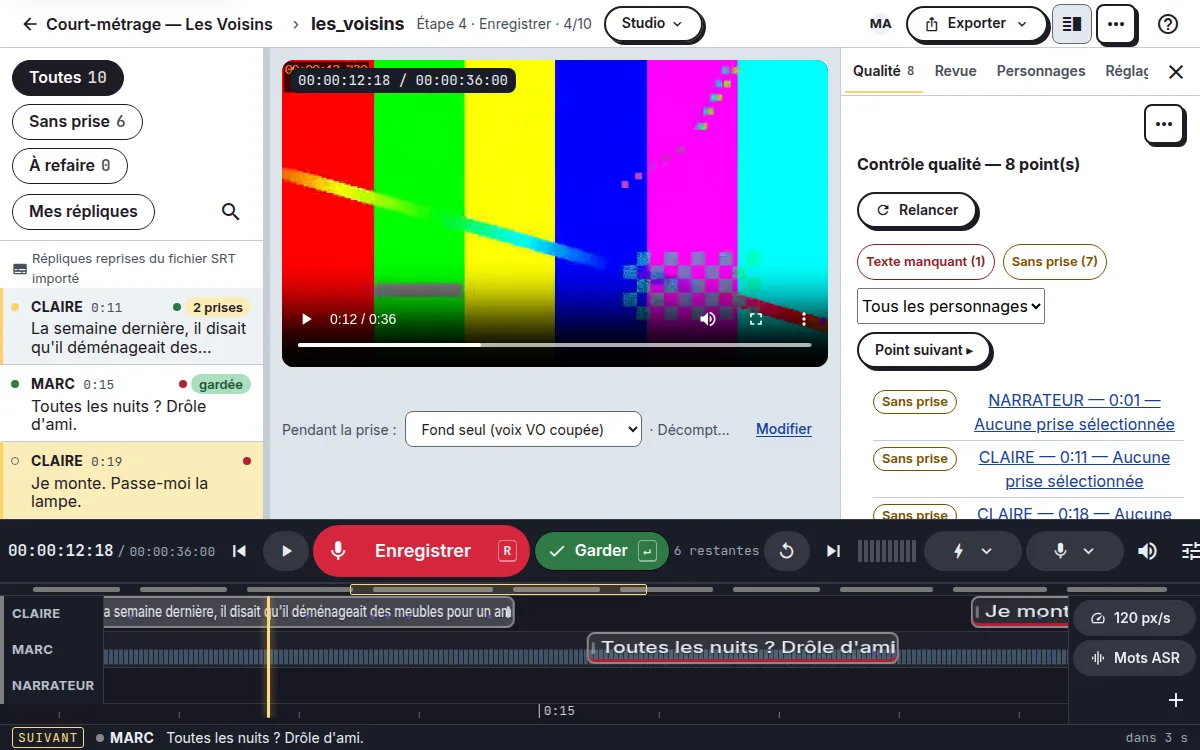
The Quality drawer goes through the whole episode: missing texts, lines without a kept take, overlaps, takes with questionable sound. Sort by severity, filter by character, and “Next issue” (
Export
“Export” mixes the kept takes over the background sound and produces the dubbed video (formats and quality of your choice), SRT or VTT subtitles, or separate tracks for external editing. Three presets set everything in one click — Rehearsal, Social networks, Broadcast — and the screen shows the coverage (how many lines have a take) before you start.
Share
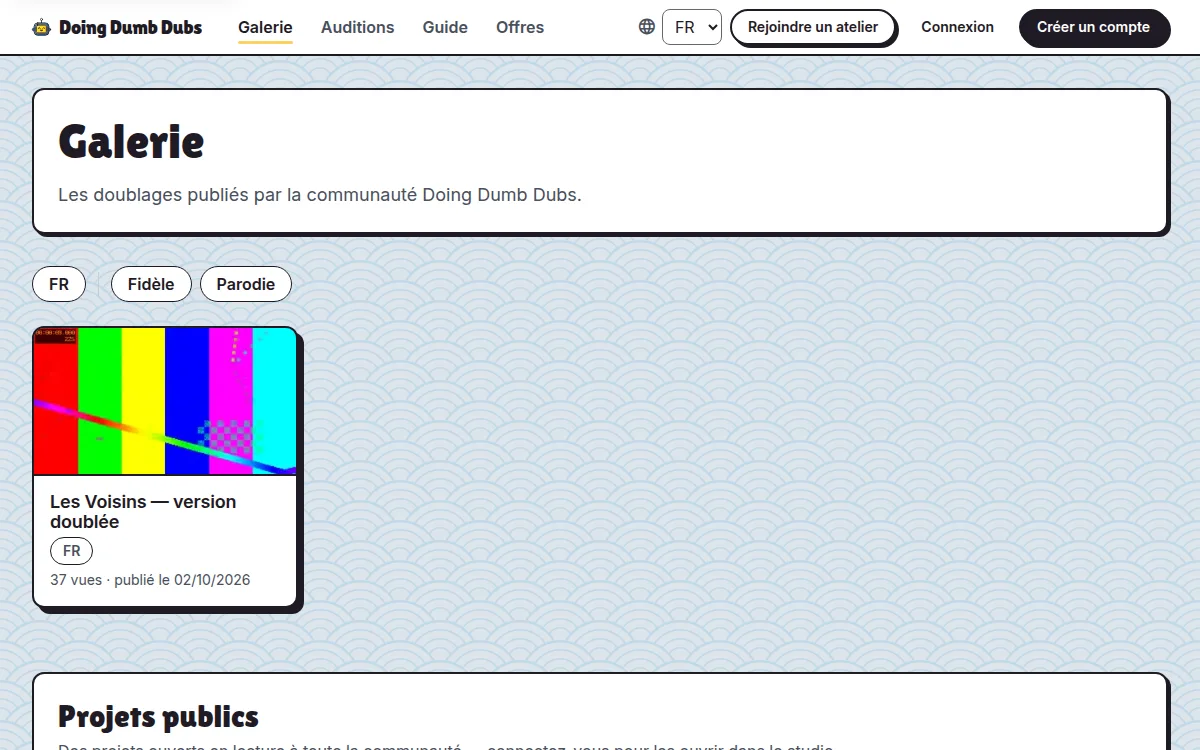
An export can be published in the public gallery — the showcase of finished dubs — or through a private, unlisted link. The karaoke replays the song on the black stage, with the sung word in yellow, for the class or the party.
Studio keyboard shortcuts
Each key is also printed on its button;
The karaoke screen has its own shortcuts:
| Key | Action |
|---|---|
| Play / pause | |
| Play from the start of the line | |
| Record a take (with countdown) / stop | |
| Redo the last take | |
| Keep the take and go to the next one | |
| Previous / next line | |
| Next line without a take | |
| Step back / forward one frame (Shift: one second) | |
| Line start / end = playhead | |
| Nudge the start by one frame (Shift: the end) | |
| Previous / next working loop | |
| Karaoke mode (rehearse, then record the loop) | |
| Place a rhythmo sign at the playhead (palette armed) | |
| Save the adapted text (Shift: and go to the next one) | |
| Undo / redo a timing move | |
| Serial review: keep / to redo / skip | |
| Close whatever is open: mic, band, drawer, review, karaoke | |
| Show the shortcut cheat sheet |
Happy dubbing! To go further, open a project from Projects.